

Android applications no longer run only as full-screen experiences on smartphones.
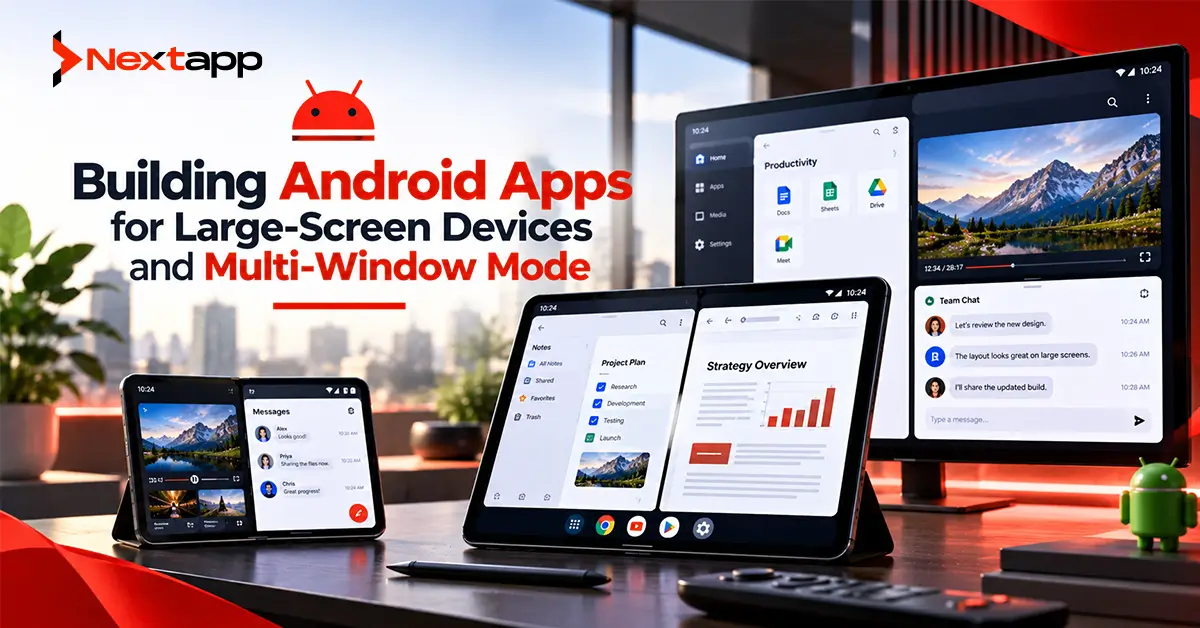
The same app may run full screen on a tablet, inside a narrow split-screen window, in a resizable desktop-style window on ChromeOS, or beside another application on a large Android device.
This creates a different engineering challenge.
An interface may look excellent on a 12-inch tablet while full screen but break when the user places it beside another application. A Chromebook user may shrink the app into a narrow window. A tablet user may resize two applications while working between them.
Building Android apps for large-screen devices and multi-window mode therefore requires developers to think about the size of the app's current window rather than the physical device alone.
The application needs to remain usable as that window expands and contracts.
Large-Screen Support Is About More Than Tablets
Large-screen Android environments include several types of devices and configurations.
Examples include:
Android tablets
Foldable inner displays
Chromebooks
Desktop windowing environments
External displays
However, device type should not become the primary layout decision.
A tablet app may occupy the entire display one moment and only one-third of the screen the next.
Similarly, an Android application running on a Chromebook may appear inside an arbitrarily resizable window.
The more useful question is:
“How much space does my app have right now?”
This is the foundation of modern adaptive Android development.
Design Around the App Window
Older Android applications sometimes used logic such as:
If tablet
→ show tablet layout
If phone
→ show phone layout
This approach becomes unreliable in multi-window environments.
A physical tablet might currently provide only a narrow phone-like window.
Instead, developers should evaluate the size of the app's current window.
Android's window size classes help categorize the available width and height.
Current width categories include:
Compact
Medium
Expanded
Large
Extra large
The application can respond as the window moves between these ranges.
A layout should not assume that a device will remain in one size class throughout the session.
Window Size Can Change While the App Is Running
This is one of the most important differences in large-screen engineering.
Consider a productivity application running full screen on a tablet.
The user opens another application in split screen.
The available width suddenly becomes smaller.
Then the user drags the divider.
The width changes again.
The app needs to adapt without requiring a restart or producing broken content.
The same issue appears on ChromeOS, where users expect Android applications to behave like desktop windows.
Layouts should respond dynamically as the current window changes.
Android 16 Makes Resizability More Important
Android's direction is increasingly clear: applications should adapt rather than restrict the device.
For apps targeting Android 16, API level 36, orientation, aspect-ratio, and app-resizability restrictions are ignored on supported large-screen displays with a smallest width of at least 600dp.
This means relying on settings such as a fixed portrait orientation is no longer a long-term solution for large screens.
Android 17 goes further by removing the temporary opt-out when applications target API level 37.
Developers should therefore prepare applications to function correctly when resized, rotated, and placed in multi-window configurations.
Multi-Window Mode Changes the Available Space
Multi-window mode lets multiple applications share the same display.
Common configurations include:
Split screen
Free-form windows
Desktop windowing
Picture-in-picture for appropriate experiences
Suppose a document-management app normally displays:
Document list
document preview
properties panel
When full screen on a large tablet, all three areas may fit comfortably.
When the user narrows the window, the app may need to show:
Document list
→ selected document opens separately
The same product remains available, but the presentation changes according to space.
Use Adaptive Layout Changes Instead of Simple Scaling
A large-screen interface should not simply stretch every component.
Adaptive design changes the way content is presented.
Common approaches include:
Reflow
Content moves into a different arrangement.
Two columns may become one column when space becomes limited.
Reveal
Additional information becomes visible when more space is available.
For example, a details panel may appear beside a list.
Presentation Change
Navigation or components may change form.
A bottom navigation bar might become a navigation rail in a wider window.
These techniques allow the app to use available space without creating oversized phone layouts.
Preserve User State During Window Changes
Window resizing, orientation changes, and other configuration changes can affect Android activities and UI state.
The application needs to preserve what the user was doing.
For example, imagine an employee completing a long inspection form.
They enter:
Customer details
Equipment condition
Notes
Inspection results
Then they move the application into split-screen mode.
Losing the form because of a configuration change is unacceptable.
State that matters to the current workflow should survive appropriate recreation and resizing events.
Depending on the architecture, developers may use:
ViewModel
Saved state
Persistent local storage
The correct solution depends on how long the information needs to survive.
Understand Multi-Resume
Multi-window environments can have multiple activities visible simultaneously.
Modern Android supports multi-resume, meaning multiple activities can remain in the resumed state even when only one has current input focus.
This matters for applications performing ongoing work.
For example, a video application might continue playback while the user interacts with another application beside it.
Developers should not assume:
RESUMED = user is actively interacting with my app
Focus and visibility need to be considered separately where the product depends on those distinctions.
Avoid Unnecessary Work Just Because the App Is Visible
Multi-window support can expose poor lifecycle assumptions.
Suppose an application starts an expensive process whenever it reaches the resumed state.
In a multi-resume environment, that work might continue even while the user interacts mainly with another application.
Evaluate whether operations truly need to continue.
Consider:
Video playback
Camera access
Sensors
Network refreshes
Animations
Large-screen multitasking should not cause unnecessary battery or resource usage.
Design for Chromebook Windows
ChromeOS gives Android applications a desktop-like environment.
Users may:
Resize windows
Maximize them
Tile applications
Run several applications simultaneously
A Chromebook user expects an Android productivity application to behave more like desktop software than a locked mobile interface.
This means developers should test extreme sizes.
A user may stretch the app across a large laptop display and then shrink it to a narrow side window.
The interface should remain usable in both cases.
Support Keyboard Input
Chromebook and tablet users frequently connect physical keyboards.
A productivity-focused Android application should therefore support normal keyboard behavior where appropriate.
Consider:
Text navigation
Tab movement
Enter actions
Escape or back behavior
Copy and paste
Useful keyboard shortcuts
For example:
Ctrl+C
→ copy
Ctrl+V
→ paste
Ctrl+F
→ search
Users who work on Chromebooks expect these conventions.
Touch should not be the only practical input method.
Support Mouse and Trackpad Interaction
Large-screen devices also introduce more pointer-based interaction.
Test:
Mouse clicks
Scroll wheel
Trackpad scrolling
Hover behavior
Context menus
Drag operations
A button should not require a touchscreen gesture that makes little sense with a mouse.
For productivity applications, pointer support can make the difference between an app that technically runs on ChromeOS and one that actually feels useful there.
Consider Drag and Drop for Productivity Apps
Large screens and multi-window mode create natural opportunities for drag-and-drop workflows.
A user might want to move:
Images
Documents
Text
Links
between applications.
For example, someone could open a messaging application beside a document app and drag a file between them.
Businesses developing content, productivity, communication, or enterprise tools should consider whether cross-app drag and drop improves the workflow.
Not every product needs it, but large-screen environments make the interaction much more valuable.
Test Multi-Window With Real Workflows
Do not test multi-window support by opening the app once beside another application and declaring the work finished.
During app prototyping and QA, test complete workflows.
For example:
Open project
→ enter split screen
→ resize window
→ edit task
→ switch focus
→ return to app
→ enlarge window
→ continue editing
Check whether:
State survives
Navigation remains understandable
Text stays readable
Buttons remain reachable
Dialogs fit
Keyboard behavior works
No content becomes clipped
Users resize windows at unpredictable points.
The application needs to tolerate those changes.
Avoid Fixed Pixel-Based Assumptions
Layouts designed around fixed sizes often struggle when windows become resizable.
Avoid assuming:
“This screen will always be 1080 pixels wide.”
Instead, build flexible layouts that use the space available.
Images should scale appropriately.
Content should wrap.
Panels should appear or collapse according to the current window.
The same principle helps cross platform app development, where applications need to behave across devices with very different display characteristics.
Keep Large-Screen Strategy Separate From Other Android Devices
Android supports several specialized device ecosystems.
Businesses might also consider:
An Android TV app development guide
Android Auto app development basics
These experiences solve different problems.
Wear OS focuses on quick wrist-based interactions.
Android TV focuses on remote-controlled large-screen viewing.
Android Auto focuses on safe in-vehicle interaction.
Large-screen tablet and Chromebook development is different because users often expect productivity, multitasking, and desktop-like flexibility.
A broader guide on which Android device ecosystem should you build for first can help businesses evaluate which environment offers the best product fit.
Cross-Platform Frameworks Still Need Adaptive Engineering
Teams using Flutter app development or React Native app development can also build applications for tablets and larger displays.
However, using a cross-platform framework does not automatically produce a strong large-screen experience.
The team still needs to define:
Responsive behavior
Breakpoints
Multi-window behavior
Keyboard interaction
Pointer support
State preservation
A cross platform app development strategy should include large-screen requirements explicitly.
Similarly, native iOS app development has its own iPad multitasking and windowing behavior.
Shared product design can help, but each operating system still needs platform-specific testing.
Large-Screen Quality Can Support Store Growth
Large-screen optimization can also contribute to a broader app store optimization strategy.
Businesses should accurately show tablet or large-screen experiences where relevant to the product.
This is particularly useful for:
Productivity apps
Enterprise software
Creative tools
Education platforms
Document applications
A polished large-screen experience can improve user perception because the product feels deliberately designed for the hardware rather than merely compatible with it.
Build for Windows, Not Device Labels
Building Android apps for large-screen devices and multi-window mode requires a change in engineering mindset.
Do not design only for:
Phone
or
Tablet.
Design for a window that can change.
A full-screen tablet app may become a narrow split-screen app seconds later. A Chromebook app may be resized repeatedly throughout the user's workday.
Professional Android app development services can help businesses modernize existing layouts, introduce window size classes, improve state handling, support multi-window mode, test ChromeOS behavior, and add keyboard and pointer interaction where appropriate.
Large-screen compatibility is no longer about making the app look acceptable on a bigger display.
It is about making the product remain useful wherever the user places its window.
Frequently Asked Questions
What is multi-window mode in Android?
Multi-window mode lets an Android application share the display with other apps through configurations such as split screen, free-form windows, desktop windowing, or picture-in-picture where appropriate.
Should Android apps detect whether a device is a tablet?
Modern adaptive design should focus primarily on the current app window size rather than relying only on device labels such as phone or tablet. Window size can change during multitasking even when the physical device stays the same.
What are Android window size classes?
Window size classes categorize the display space currently available to an application. They help developers make high-level adaptive layout decisions as the app window becomes narrower or wider.
Why is Android 16 important for large-screen apps?
For apps targeting Android 16, Android ignores several orientation, aspect-ratio, and resizability restrictions on qualifying large-screen environments, making adaptive layouts and correct resizing behavior increasingly important.
Do Chromebook Android apps need keyboard and mouse support?
Apps can technically run without advanced keyboard and mouse features, but productivity-focused Chromebook experiences benefit significantly from keyboard navigation, shortcuts, mouse input, scrolling, hover states, and other desktop-style interactions.
Can Flutter and React Native apps support Android multi-window mode?
Yes. Flutter and React Native applications can support large screens and resizable environments, but developers still need to design adaptive layouts, preserve state, handle changing window dimensions, and test platform-specific multitasking behavior.