

Android app accessibility means designing and developing an application so people with different visual, hearing, motor, and cognitive abilities can complete its important tasks.
Accessibility affects much more than screen readers.
An accessible Android app may need to support larger text, clear contrast, predictable navigation, larger touch targets, alternative interaction methods, captions, meaningful labels, and layouts that remain understandable when assistive technologies are enabled.
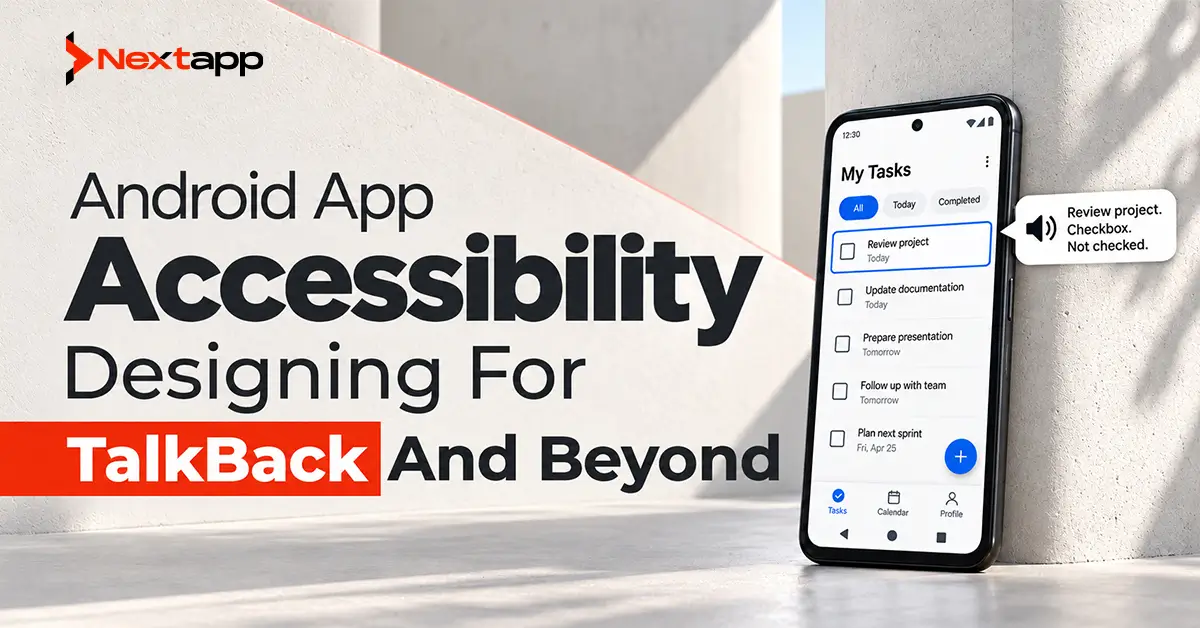
TalkBack is one of the most important Android accessibility tools because it allows users to navigate an interface through spoken feedback. Android accessibility services can also support technologies such as Switch Access and voice-based interaction. Google describes TalkBack as a screen reader primarily used by people with visual impairments and recommends testing with other accessibility services as well.
Accessibility should therefore be treated as part of the product architecture, design system, development process, and quality assurance plan rather than a final checklist before launch.
What Is TalkBack?
TalkBack is Android’s screen reader.
Instead of depending only on what appears visually, users can move focus through elements and hear information such as:
- Screen content
- Button labels
- Control roles
- Selected states
- Form values
- Navigation options
- Error information
For TalkBack to describe a custom interface correctly, Android needs semantic information about what each element means.
A visible camera icon, for example, is simply an image unless the application communicates that its purpose is “Take photo.”
Jetpack Compose uses semantics to provide this additional meaning to accessibility services. Semantic information can describe roles, state, text, actions, and content descriptions.
Use Standard Components Where Possible
Standard Material and Compose components already include many accessibility behaviors.
Buttons, switches, checkboxes, text elements, and other established components expose useful semantic information according to their function. Google notes that Material, Compose UI, and Foundation APIs provide many accessibility defaults automatically.
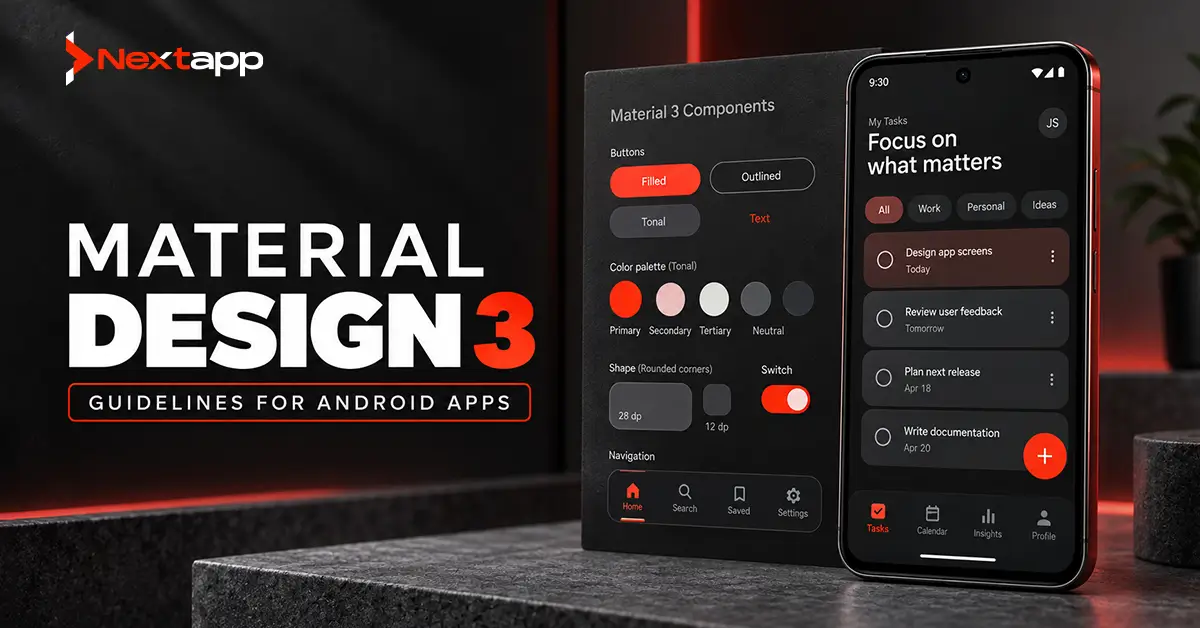
This is one reason a consistent implementation of Material Design 3 guidelines for Android apps can provide a stronger accessibility foundation than a product built almost entirely from custom controls.
Custom components are still appropriate when the product requires them.
Developers simply need to take responsibility for:
- Semantic role
- Accessible label
- State
- Click behavior
- Focus
- Touch target
- Reading order
A custom design should not become invisible or meaningless to assistive technology.
Write Useful Content Descriptions
Icons and images sometimes need descriptions so users who cannot see them can understand their purpose.
In Compose, visual elements such as Icon and Image can receive a contentDescription.
Good descriptions communicate meaning or action.
For example:
“Add to favorites”
is more useful than:
“Heart-shaped outline icon.”
Android recommends describing the purpose or result rather than unnecessary visual details. It also recommends avoiding redundant descriptions such as “Submit button” when the role of button is already exposed separately.
Decorative elements should not create unnecessary announcements.
When an image contributes no meaningful information, its content description can often be omitted or set appropriately so accessibility services ignore it.
Keep Touch Targets Large Enough
Small controls create problems for users with limited dexterity, tremors, temporary injuries, or difficulty making precise touch movements.
Android recommends a minimum touch target of 48dp by 48dp for interactive elements.
The visible icon itself does not need to be 48dp.
A 24dp icon can sit inside a larger clickable area.
Pay particular attention to:
- Icon-only buttons
- Close controls
- Overflow menus
- Checkboxes
- Small filter controls
- Calendar controls
- Map actions
Several small interactive elements placed close together can also cause accidental taps even when individual controls technically meet the minimum size.
Support Text Scaling
Users may increase system text size because ordinary mobile text is difficult to read.
An accessible application should remain functional when text becomes larger.
Test whether:
- Headings wrap correctly
- Buttons expand
- Labels remain visible
- Forms preserve context
- Navigation still works
- Text does not overlap icons
- Important content is not clipped
Avoid designing fixed-height containers that only work at the default font size.
Responsive layouts should allow content to reflow.
This becomes especially important when designing responsive Android UI for tablets, where larger windows and increased text sizes may occur together.
Do Not Use Color Alone
Color can reinforce meaning, but it should not be the only method of communicating information.
Consider a form where invalid fields are outlined only in red.
A user who cannot distinguish the color change may not understand what happened.
Combine visual color with:
- Error text
- Icons
- Accessible announcements
- Clear labels
The same principle applies to charts, status indicators, selected tabs, alerts, and progress.
A sales dashboard should not communicate “above target” and “below target” only through green and red.
Maintain Contrast in Light and Dark Modes
Accessibility requirements do not disappear when an application switches themes.
Text, icons, borders, controls, status indicators, and charts should remain readable against their backgrounds.
Teams working on dark mode implementation in Android apps should test accessibility as part of both themes rather than approving light mode and assuming the same palette will translate correctly.
A color combination that works on a bright background may become weak on a dark surface.
Dark mode testing should include:
- Main text
- Supporting text
- Disabled controls
- Form borders
- Errors
- Links
- Charts
- Dialogs
Keep TalkBack Navigation Logical
A user who sees the screen can understand spatial relationships immediately.
A TalkBack user experiences the interface in a sequence.
The focus order should therefore follow a logical reading and interaction pattern.
For example, a checkout screen might move through:
- Delivery address
- Edit address action
- Delivery method
- Payment method
- Order total
- Confirm purchase
An incorrect focus order may jump from the top of the screen to a footer, back into a form, and then into navigation.
Compose provides ways to work with traversal and semantic structure when the default order does not produce the intended experience.
Group Related Elements
Not every piece of visible content needs to become an independent TalkBack stop.
Consider a product card containing:
- Product image
- Product name
- Price
- Rating
- Favorite icon
Reading every decorative element individually can make navigation slow.
Semantic merging can allow related information to be treated as a meaningful unit while keeping separate actions available when necessary. Compose’s semantics system supports merging and clearing behavior for these situations.
The goal is not to expose the largest possible number of elements.
The goal is to make the interface efficient to understand and operate.
Make Forms Accessible
Forms require particularly careful accessibility design.
Every field should have a meaningful label.
Users also need to understand:
- Whether information is required
- What format is expected
- Why validation failed
- Where the error occurred
- What action comes next
Do not use placeholder text as the only source of context.
After a user begins typing, a placeholder may disappear.
Error messages should be specific.
Instead of:
“Invalid input”
use:
“Enter a phone number with ten digits.”
An accessible form should also preserve entered information after recoverable errors.
Announce Important State Changes
Some changes happen without navigating to a new screen.
Examples include:
- Form submitted successfully
- Upload failed
- Cart updated
- Loading completed
- Item removed
- Connection lost
A visual banner may be sufficient for a sighted user but may go unnoticed by someone using TalkBack.
Important state changes should be represented in a way accessibility services can understand and announce appropriately.
Avoid announcing every minor update, however.
An interface that constantly interrupts the user with status messages can become just as difficult to operate as one that provides no feedback.
Accessibility on Foldables and Larger Screens
Adaptive layouts create additional accessibility considerations.
When designing Android apps for foldable devices, a one-pane screen may become a two-pane layout after the device opens.
The visual arrangement changes, so teams should verify that:
- Focus order remains logical
- Content is not duplicated
- Important controls remain reachable
- Hinge-aware layouts do not create confusing traversal
- State is preserved during configuration changes
Similar checks apply to tablet interfaces.
An accessibility-friendly phone interface does not automatically remain accessible after the same content is rearranged across two panes.
Accessibility and App Prototyping
Accessibility should begin before production code.
During app prototyping, teams can already review:
- Information hierarchy
- Label clarity
- Form complexity
- Touch-target size
- Navigation order
- Error language
- Text scaling assumptions
Prototype testing with users can reveal issues that automated tools cannot.
Google specifically recommends user testing alongside automated and manual accessibility checks because real users can identify usability problems that tools may miss.
Including people with disabilities in usability testing can provide particularly valuable feedback.
Test With TalkBack Manually
Automated tools are useful, but they are not enough.
Google explicitly recommends manual testing with accessibility services such as TalkBack and Switch Access.
A TalkBack test should check whether users can:
- Understand the screen
- Identify every important control
- Complete forms
- Navigate backward
- Open menus
- Understand selected states
- Recover from errors
- Complete the main workflow
Do not test only the home screen.
Run complete tasks such as registration, purchase, booking, profile editing, and account recovery.
Use Automated Accessibility Testing
Automated tests can identify repeatable accessibility problems during development.
Compose testing APIs use semantic information to inspect UI elements and verify behavior. Android also provides accessibility checks through its testing ecosystem.
Automated testing can help catch issues such as:
- Missing labels
- Small touch targets
- Certain semantic problems
It cannot determine whether an entire workflow makes sense to a person.
Use automation as one layer of the accessibility testing strategy.
ADA Considerations for Mobile Apps
Accessibility may also have legal implications depending on the organization and jurisdiction.
For U.S. state and local governments, the Department of Justice’s Title II web and mobile accessibility rule requires covered web content and mobile apps to meet WCAG 2.1 Level AA, subject to the rule’s provisions and exceptions. In April 2026, the DOJ extended the relevant compliance dates to April 26, 2027 for public entities with populations of 50,000 or more and April 26, 2028 for smaller public entities and special district governments.
Private businesses can face different ADA considerations, and requirements may depend on the circumstances. Accessibility planning for regulated or high-risk products should involve appropriate legal and compliance professionals rather than relying only on general development guidance.
Section 508 and Federal Applications
Section 508 is particularly relevant to U.S. federal agencies and federal information and communication technology.
Section508.gov states that the requirements cover ICT developed, procured, maintained, or used by federal agencies, including mobile applications and software.
A company building software for federal use may therefore encounter accessibility requirements during procurement, vendor evaluation, development, or acceptance testing.
Teams should identify these requirements before development contracts and technical scopes are finalized.
Accessibility Across Development Frameworks
Accessibility principles remain important regardless of the mobile framework.
Teams using Flutter app development, React Native app development, or broader cross platform app development still need to verify how semantic labels, focus behavior, text scaling, touch targets, and assistive technologies work on the Android build.
Shared code does not guarantee shared accessibility quality.
Native iOS app development also requires its own platform-specific accessibility testing because Apple and Android expose different assistive technologies and interaction conventions.
Each platform should be tested as the product users will actually experience it.
Accessibility and Google Play Quality
Accessibility is primarily about making the application usable, not manipulating store rankings.
However, inaccessible experiences can create poor usability, abandonment, support issues, and negative reviews.
Teams working on app store optimization should therefore see accessibility as part of product quality rather than a keyword or listing tactic.
A strong store listing may attract the download. The app itself must still allow the user to complete the promised task.
Common Android Accessibility Mistakes
Avoid these frequent problems:
- Missing content descriptions
- Describing decorative images unnecessarily
- Tiny touch targets
- Using color as the only status indicator
- Fixed layouts that break with larger text
- Incorrect TalkBack focus order
- Vague form errors
- Custom controls without semantics
- Testing only visually
- Assuming Material components make the entire app accessible
- Adding accessibility only before release
- Testing only one screen
- Ignoring accessibility after responsive layouts are introduced
Accessibility Should Be Part of Product Quality
Android app accessibility is not one feature that can be switched on at the end of development.
It is the result of hundreds of interface decisions involving labels, controls, typography, state, navigation, touch interaction, layouts, testing, and feedback.
Use standard components where possible. Add meaningful semantics to custom controls. Test larger text, dark mode, responsive layouts, TalkBack, and other accessibility services throughout development.
For government, federal, healthcare, enterprise, or other compliance-sensitive projects, identify applicable accessibility obligations during discovery rather than after implementation.
Professional Android app development services can incorporate accessibility into UX design, Material 3 components, development, automated testing, TalkBack testing, adaptive layouts, and release quality assurance.
An accessible application does more than satisfy a checklist. It gives more users a realistic opportunity to complete the same important tasks.
Frequently Asked Questions
What is TalkBack in Android?
TalkBack is Android’s screen reader. It uses accessibility information exposed by applications to announce screen content, control roles, states, and available actions.
What size should Android touch targets be?
Android recommends that interactive elements generally provide a minimum touch target of 48dp by 48dp for reliable interaction.
Do Compose components support accessibility automatically?
Many Material, Compose UI, and Foundation components provide built-in semantics and accessibility behavior, but developers still need to review custom components and test complete workflows.
Does the ADA apply to Android mobile apps?
ADA obligations depend on the organization and context. The DOJ’s current Title II rule specifically establishes WCAG 2.1 Level AA requirements for covered state and local government web content and mobile apps.
Does Section 508 include mobile apps?
Yes. Section508.gov states that Section 508 applies to federal ICT, including mobile applications and software developed, procured, maintained, or used by federal agencies.
How should an Android app be tested for accessibility?
Use a combination of manual TalkBack and Switch Access testing, automated accessibility checks, semantic UI tests, and usability testing with real users, including users with disabilities where possible.