

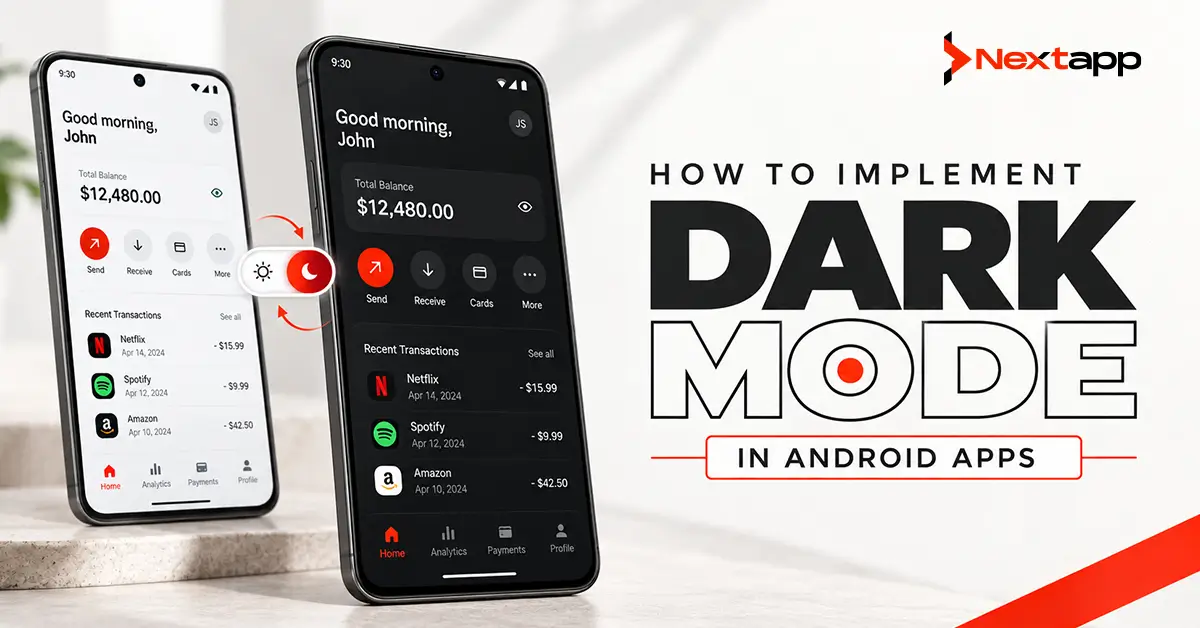
Dark mode changes an Android application from a primarily light interface to a darker color scheme that is more comfortable in certain viewing environments and better aligned with a user’s device preferences.
A proper dark theme involves more than replacing white backgrounds with black ones.
Text, surfaces, buttons, icons, images, borders, status colors, dialogs, charts, loading states, and system bars all need to remain clear and usable.
Android provides native support for light and dark themes, and modern Jetpack Compose applications can define separate Material 3 color schemes that respond automatically to the system setting. Traditional View-based apps can also support dark mode through DayNight themes.
A successful dark mode implementation should preserve the same hierarchy, usability, accessibility, and brand identity as the light interface.
Start With a Complete Color System
The first step is defining how the application’s colors behave in both themes.
Avoid selecting dark-mode colors individually for each screen.
Instead, define roles for:
- Primary color
- Secondary color
- Background
- Surface
- Text
- Borders
- Error states
- Success states
- Disabled controls
- Elevated containers
Material 3 already organizes color around semantic roles. A component can use a surface color for its background and an onSurface color for content placed above it.
This makes the design easier to maintain because components depend on roles rather than hardcoded colors.
Teams following Material Design 3 guidelines for Android apps should establish the light and dark color schemes together instead of completing the light interface first and treating dark mode as a later visual adjustment.
Avoid Hardcoded Colors
Hardcoded colors are one of the most common causes of broken dark themes.
Consider a label defined permanently as black.
It may look correct against a white background but disappear when the same screen changes to a dark surface.
The same issue applies to:
- Icons
- Dividers
- Input borders
- Placeholder text
- Custom components
- Illustrations
Android recommends using theme attributes or theme-aware resources instead of hardcoded colors intended only for a light interface.
A component should receive its appearance from the active theme wherever possible.
Implement Dark Mode With Jetpack Compose
Modern Compose applications can determine whether the system is using dark mode with isSystemInDarkTheme().
The app theme can then choose between a light and dark ColorScheme.
Material 3 provides lightColorScheme() and darkColorScheme() for this purpose.
A simplified theme structure looks like:
@Composable
fun AppTheme(
darkTheme: Boolean = isSystemInDarkTheme(),
content: @Composable () -> Unit
) {
val colors = if (darkTheme) {
DarkColorScheme
} else {
LightColorScheme
}
MaterialTheme(
colorScheme = colors,
content = content
)
}
Individual components can then use values from MaterialTheme.colorScheme instead of carrying their own unrelated color definitions.
This creates one central point for changing the application theme.
Implement Dark Mode in XML and View-Based Apps
Existing Android applications may still use XML layouts and the traditional View system.
Dark mode does not require these apps to migrate to Compose.
Android recommends using a DayNight-compatible theme, such as an AppCompat DayNight or Material Components DayNight theme. The system can then apply the appropriate night-mode configuration.
View-based applications should use theme attributes and night-qualified resources where necessary.
Businesses considering broader modernization should evaluate Jetpack Compose vs. XML layouts for Android UI separately from the dark-mode requirement. Supporting dark mode does not justify rewriting an otherwise stable application by itself.
Follow the System Theme by Default
Most applications should respect the user’s Android appearance setting.
A user who has selected dark mode at the operating-system level usually expects supported applications to follow it.
Android currently recommends giving users three appearance choices when an in-app selector is provided:
- Light
- Dark
- System default
System default is the recommended default option.
This provides flexibility without forcing users to maintain a separate preference for every app.
On supported modern Android versions, applications can also communicate their selected night mode through platform APIs so system surfaces such as the splash screen remain visually consistent.
Consider Dynamic Color
Material 3 supports dynamic color on Android 12 and later.
Dynamic color can generate light and dark color schemes based on the user’s system personalization, including wallpaper-derived colors. When dynamic color is unavailable, the app can fall back to its own custom light or dark scheme.
Dynamic color can work well for:
- Consumer productivity apps
- Lifestyle products
- Personal organization tools
- Customizable applications
It may require more careful consideration for products with strict brand or status-color requirements.
A healthcare app, for example, should not allow system personalization to weaken the visual meaning of critical warnings.
Brand requirements should determine whether dynamic color is used.
Use Dark Surfaces Instead of Pure Black Everywhere
A dark interface does not need to use pure black for every background.
Different dark surfaces can establish hierarchy between:
- Main background
- Cards
- Dialogs
- Navigation
- Elevated elements
- Input areas
Using slightly different surface values helps users understand visual structure without relying on heavy borders.
Pure black may still be suitable for selected products or AMOLED-focused experiences, but it should be a deliberate design choice rather than the default definition of dark mode.
Recheck Every Status Color
Colors that work against a light background may behave differently against dark surfaces.
Review:
- Errors
- Warnings
- Success messages
- Information states
- Selected items
- Links
- Disabled controls
Red text that is clearly visible on white may have poor readability on a dark-red container.
A green success indicator may need a different tone in dark mode.
Preserve meaning while adjusting brightness and contrast.
Test Text and Contrast Carefully
Dark mode must remain readable.
Test:
- Headlines
- Body text
- Captions
- Placeholder text
- Disabled labels
- Button text
- Text over images
- Links
Accessibility should remain part of theme development from the beginning.
Teams working through Android app accessibility with TalkBack and accessibility services should test both themes with text scaling, screen readers, high-contrast situations, and different display conditions.
Color should never be the only way to communicate an error, selection, or status.
Adapt Images and Illustrations
Images can become a major problem after the background changes.
A logo created for a white background may contain dark text that disappears in dark mode.
Illustrations may include white rectangles that suddenly appear as visible boxes.
Check:
- Logos
- Illustrations
- Charts
- Maps
- Screenshots
- Product images
- Empty-state graphics
- Custom icons
Possible solutions include:
- Theme-specific image assets
- Transparent backgrounds
- Tintable vector graphics
- Alternative logo versions
- Theme-aware chart colors
Photographs generally do not need complete replacement, but their surrounding surfaces and overlays should be tested.
Check Navigation and System Areas
Dark mode should extend beyond screen backgrounds.
Review:
- Status bar
- Navigation bar
- Top app bar
- Bottom navigation
- Navigation rail
- Drawers
- Dialogs
- Bottom sheets
- Menus
An application can feel unfinished when the main content is dark but system bars remain unexpectedly bright.
The complete visual hierarchy should transition consistently.
Test Dark Mode on Tablets and Foldables
A theme should continue working as the layout expands.
A phone may display one dark surface, while a tablet shows several panes, navigation rails, or side panels.
The guide to designing responsive Android UI for tablets should account for how those additional surfaces behave in both themes.
The same applies when designing Android apps for foldable devices. Folding and unfolding may expose new panes, containers, or navigation patterns that were not visible on a compact screen.
Theme testing therefore needs to include adaptive layouts, not only a single phone screenshot.
Do Not Rely on Force Dark for a Finished Product
Android introduced Force Dark as a way to automatically analyze light-themed Views and apply dark transformations.
It can help with selected legacy scenarios, but automated inversion does not understand every design decision. Android specifically recommends thorough testing when Force Dark is used.
Problems may occur with:
- Brand colors
- Images
- Custom Views
- Web content
- Charts
- Status indicators
A properly designed DayNight or Material theme gives the team more control.
Prototype Both Themes Before Development Is Complete
Dark mode should appear during app prototyping, not only during final QA.
Prototype important screens such as:
- Login
- Dashboard
- Forms
- Checkout
- Search
- Errors
- Empty states
- Dialogs
This helps designers catch problems with hierarchy and contrast before those decisions become embedded in reusable components.
Early testing also reduces the chance that dark mode becomes a rushed launch requirement.
Dark Mode in Cross-Platform Apps
Businesses using Flutter app development, React Native app development, or another cross platform app development approach should still respect Android system appearance settings when delivering an Android application.
The implementation differs by framework, but the design principles remain similar.
The Android version should behave naturally within Android while native iOS app development should respect Apple’s appearance conventions.
Sharing brand colors does not require every platform to implement theme behavior identically.
Dark Mode Can Support the Overall App Experience
Dark mode itself is not an app store optimization strategy, but a polished light and dark experience can strengthen the overall quality of an application.
When dark mode is an important part of the product experience, relevant Google Play screenshots may also show how the interface looks under different appearances.
Store images should always represent the real application rather than a theme concept that users cannot access.
Test Before Release
Dark mode testing should cover:
- System theme switching
- Manual theme switching
- App restart
- Text scaling
- TalkBack
- Forms
- Errors
- Images
- Charts
- Dialogs
- Adaptive layouts
- Older supported Android versions
- Dynamic color where enabled
Switch between themes while using real workflows rather than inspecting isolated screens.
A professional provider of Android app development services can help businesses create theme systems that work across Material components, custom interfaces, accessibility settings, tablets, foldables, and different Android versions.
Dark mode is successful when users can switch appearance without losing clarity, hierarchy, accessibility, or product identity.
Frequently Asked Questions
How do I enable dark mode in an Android app?
Compose apps can detect the system theme with isSystemInDarkTheme() and switch between light and dark Material color schemes. View-based apps can use DayNight-compatible themes.
Should an Android app follow the system dark mode setting?
Usually yes. Android recommends system default as the default choice when apps also provide manual Light and Dark appearance options.
What is dynamic color in Android dark mode?
Dynamic color can create light and dark Material color schemes from the user’s system personalization. It is available on Android 12 and later.
Should dark mode use a pure black background?
Not necessarily. Dark surfaces can use several dark tones to preserve hierarchy between backgrounds, cards, dialogs, and elevated components.
Can an XML-based Android app support dark mode?
Yes. XML and View-based applications can use AppCompat or Material DayNight themes and theme-aware resources without migrating to Compose.
How should dark mode be tested?
Test system switching, contrast, text scaling, accessibility, images, forms, errors, navigation, tablets, foldables, dialogs, dynamic color, and supported Android versions.