

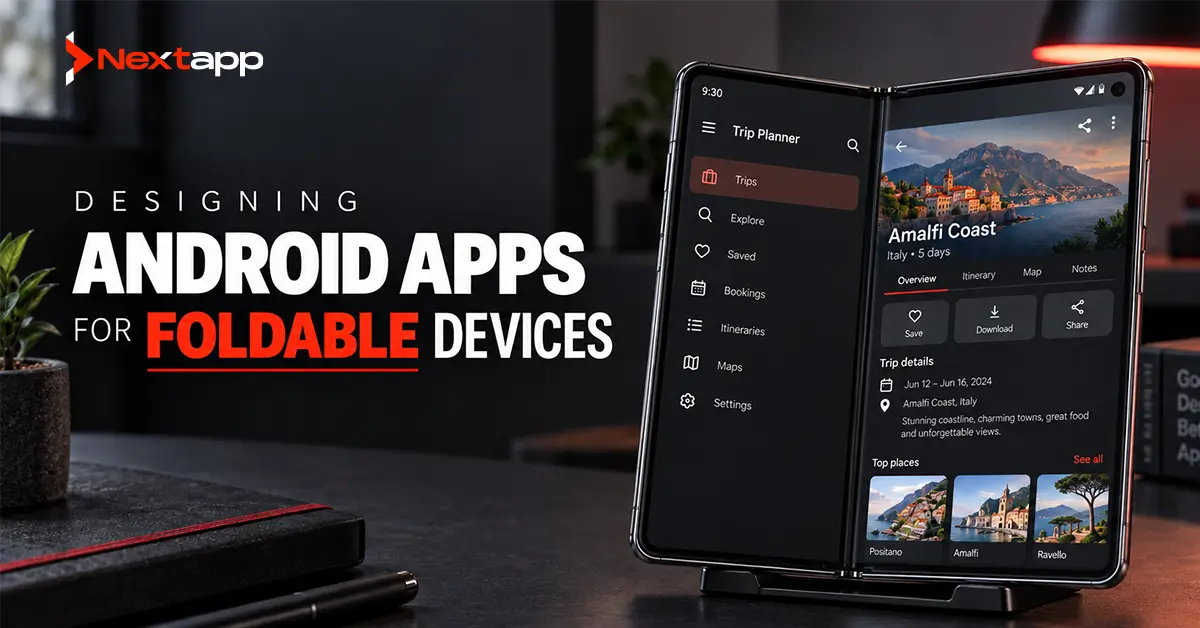
Foldable devices change more than screen size.
An Android app may begin on a compact external display, move to a much larger internal screen when the device opens, enter split-screen mode, or operate while the device is partially folded.
A traditional phone layout that simply stretches across the available space rarely makes good use of these changes.
Designing Android apps for foldable devices requires an adaptive approach in which navigation, content hierarchy, layout structure, controls, and supporting information respond to the space currently available to the application.
Android now treats foldables as part of its broader adaptive-app strategy. Current guidance recommends building interfaces that respond to window size and configuration rather than assuming a fixed physical device or orientation.
For businesses maintaining an existing Android product, this does not necessarily mean creating a separate foldable app.
The goal is usually to make the existing application flexible enough to work effectively across phones, tablets, foldables, and resizable windows from the same codebase.
Foldable Design Is Part of Adaptive Android Development
It is tempting to treat foldables as a completely separate device category.
In practice, many of the changes required for foldables also improve the application on:
- Tablets
- Large phones
- ChromeOS devices
- Split-screen windows
- Desktop windowing
- Resizable app windows
Android recommends adaptive layouts that respond to the current amount of space available to the app. The same physical device can expose different window sizes as orientation, multitasking, or device posture changes.
This means developers should avoid thinking only in categories such as:
“Phone layout.”
“Tablet layout.”
“Foldable layout.”
A stronger approach is:
“What layout works for the window available right now?”
This principle also forms the foundation of designing responsive Android UI for tablets, where the same interface may need to move between compact and expanded arrangements.
Understand Foldable States and Postures
Foldable devices can operate in different physical configurations.
Depending on the hardware, an application may encounter:
- Fully folded use
- Fully unfolded use
- Tabletop posture
- Book posture
- Half-opened states
Android provides fold-aware information through Jetpack WindowManager. Its WindowInfoTracker can provide layout information about folding features such as hinges and folds.
A fold or hinge can influence where content should appear.
For example, an application should avoid placing:
- A critical button directly over a hinge
- Important text where the display bends
- A form field across an interrupted region
- Interactive controls where they become difficult to reach
The fold can also become useful.
A book-reading application might place one page on each side.
A video application in tabletop posture might show video content on the upper section and playback controls below.
A productivity tool might use one side for a list and the other for details.
Fold awareness should support the application’s real use case rather than create an unusual layout merely because the device can fold.
Design Around Window Size Classes
Window size classes help teams make layout decisions according to the space available to the application.
Current Android guidance categorizes window widths and heights into size classes. The window class can change while an app is running, so it should not be treated as a permanent property of the physical device.
For example, the same foldable might provide:
- A compact layout when folded
- An expanded layout when unfolded
- A smaller layout when the app enters split-screen mode
A responsive design should therefore react when the window changes.
The application may adjust:
- Number of columns
- Navigation
- Content panes
- Supporting information
- Form arrangement
- Image sizes
- Dialog presentation
Hard-coded layouts built around specific screen dimensions become increasingly difficult to maintain across these states.
Do Not Stretch the Phone Interface
One of the most common large-screen mistakes is allowing a narrow phone interface to expand indefinitely.
Consider a customer-management app.
On a phone, the interface may show a customer list. Selecting one customer opens a separate details screen.
On an unfolded foldable, the app may have enough width to show:
- Customer list on the left
- Selected customer details on the right
The information is the same.
The presentation changes according to available space.
Android’s adaptive guidance supports canonical patterns such as list-detail layouts for precisely these kinds of experiences.
This improves productivity because users can see context without constantly moving between screens.
Use Multi-Pane Layouts Where They Add Value
A larger foldable display can support multiple related content areas.
Useful multi-pane examples include:
Left side:
Inbox
Right side:
Selected message
E-Commerce
Left side:
Product list
Right side:
Product details
Healthcare
Left side:
Patient list
Right side:
Selected patient summary
Field Service
Left side:
Job queue
Right side:
Job details and status
Messaging
Left side:
Conversation list
Right side:
Active conversation
A two-pane layout should not be used merely to fill empty space.
The content areas should have a meaningful relationship.
Adapt Navigation With the Layout
Navigation that works well on a compact phone may not be the best choice on an unfolded device.
A small phone interface may use bottom navigation.
More available width may support:
- Navigation rail
- Persistent navigation
- Expanded navigation
- Additional contextual actions
Compose Material 3 Adaptive includes components and scaffolds designed to respond to window configurations and postures. Its adaptive library can help applications change navigation and pane arrangements according to available space.
Teams already using Material Design 3 guidelines for Android apps can build adaptive navigation into the broader design system instead of creating unrelated foldable-specific components.
Consistency matters because users may move between folded and unfolded states during the same session.
Preserve User Context When the Device Changes
Opening or closing a foldable should not make users start over.
The application should preserve:
- Current screen
- Selected item
- Form progress
- Scroll position where practical
- Search state
- Filters
- Draft content
- Important UI state
A customer filling a long form should not lose entered information simply because the device was unfolded.
This requires good state management as well as adaptive UI design.
The interface should respond to configuration changes without treating them as completely new sessions.
Design Forms for Changing Widths
Forms can benefit significantly from larger foldable displays.
A compact version might display:
Name
Phone
Address
as one vertical sequence.
An expanded version may place related fields side by side.
For example:
First name | Last name
City | State
Start date | End date
The layout can become more efficient without changing the data requirements.
Avoid creating excessively wide fields simply because additional space exists.
Long lines can reduce readability, and very wide form controls may make scanning harder.
Use the extra space to organize information rather than stretch it.
Test Typography and Content Reflow
Text should remain readable as the available window changes.
Test:
- Large system font sizes
- Long translations
- Narrow folded layouts
- Wide unfolded layouts
- Landscape configurations
- Split-screen mode
Buttons and labels that fit perfectly in a design mockup may wrap or truncate in production.
Accessibility should be included from the beginning.
The principles covered in Android app accessibility with TalkBack and accessibility services remain important on foldables because changing layouts can also affect reading order, focus movement, labels, and navigation.
A two-pane design, for example, must still make sense when explored through assistive technologies.
Support Light and Dark Themes Across Layouts
Adaptive design does not stop with screen structure.
Foldable experiences should also remain consistent across light and dark themes.
Test:
- Surfaces
- Pane boundaries
- Dividers
- Elevated containers
- Text
- Icons
- Status indicators
- Images
The application may introduce additional surfaces or panes when the device opens, which can expose theme problems that were not visible on a compact layout.
Teams implementing multiple appearances should coordinate foldable layouts with dark mode implementation in Android apps rather than treating them as unrelated design tasks.
Use Jetpack Compose for Adaptive Layouts
Jetpack Compose provides modern APIs for building responsive Android interfaces.
Current Compose adaptive tooling includes Material 3 Adaptive libraries that can react to window configurations such as window size classes and device postures.
Compose can simplify adaptive UI because layouts can render different component arrangements according to state and window information.
For example, the app may render:
- One pane for compact width
- Two panes for expanded width
without creating completely separate applications.
However, an existing XML-based app does not need to be completely rewritten before supporting larger screens.
Android provides guidance for adding adaptive Compose layouts to existing View-based applications, allowing teams to modernize gradually.
Existing Apps Should Modernize Gradually
A business with a mature Android app may already have:
- XML layouts
- Custom Views
- Fragment navigation
- Extensive automated tests
- Third-party UI components
Adding foldable support does not automatically justify a complete interface rewrite.
A practical modernization process may begin with:
- Identify the highest-value workflows.
- Remove fixed orientation assumptions.
- Test current layouts at different window sizes.
- Introduce responsive spacing and sizing.
- Adapt navigation.
- Add multi-pane layouts where useful.
- Detect folds or hinges only where they affect the experience.
- Test configuration changes.
- Expand support screen by screen.
Businesses deciding whether to modernize the interface at the same time should evaluate Jetpack Compose vs. XML layouts for Android UI separately from the foldable requirement.
A foldable project can become unnecessarily expensive when every existing technical decision is reopened simultaneously.
Fold-Aware Features Should Solve a Real Problem
Foldable APIs can detect physical display features, but not every app needs special posture-based behavior.
A banking application may simply need a good adaptive layout.
A video app may benefit from tabletop controls.
A camera application may need much deeper awareness of display state and preview behavior.
Android’s current foldable quality guidance specifically highlights postures and camera experiences among the opportunities for differentiated foldable apps.
The business should ask:
Does this fold-aware feature make the task easier?
If not, responsive layout support may be enough.
Test More Than Fully Folded and Fully Open
Testing should include transitions and intermediate conditions.
Important scenarios include:
- Folded
- Unfolded
- Half-opened
- Tabletop posture where supported
- Book posture where supported
- Portrait
- Landscape
- Split screen
- Resized windows
- Large font settings
- Dark mode
- TalkBack
Android’s large-screen quality guidance defines progressive support levels ranging from basic compatibility to optimized and differentiated experiences. Higher-quality experiences address adaptive layouts, multitasking, foldable postures, and additional input methods where relevant.
Do not test only one premium foldable model.
The layout should respond to available space rather than depend on one device’s exact dimensions.
Use Prototypes Before Building Complex Foldable Experiences
A new two-pane or posture-aware interface can look logical on a design board but feel awkward when used on a real device.
App prototyping can help teams test:
- Pane hierarchy
- Navigation
- Fold placement
- Content priority
- Expanded controls
- Task continuity
Prototype important workflows before investing heavily in specialized implementation.
A working prototype can answer whether the user actually benefits from seeing two areas simultaneously or whether the design simply contains more information.
Consider Foldables in Cross-Platform Projects
Foldable support also matters when an application is not purely native Android.
Teams using Flutter app development, React Native app development, or another cross platform app development approach should verify how the chosen framework exposes adaptive Android behavior and foldable-specific APIs.
Shared code does not remove the need to respect Android’s windowing model.
Similarly, iOS app development follows Apple’s device and interface environment rather than Android’s foldable APIs.
A cross-platform product can share business goals and much of its code while still adapting its user experience to the capabilities of each operating system.
Show the Foldable Experience in the Store Listing
A business investing in large-screen optimization should also consider how users discover that experience.
Android’s large-screen quality guidance encourages developers to use Google Play screenshots and listing content to demonstrate optimized large-screen experiences.
This connects foldable development with app store optimization.
If the product provides a strong tablet or foldable experience, screenshots can communicate that advantage before installation.
Store assets should represent real functionality rather than mockups of features the application does not provide.
Common Foldable App Design Mistakes
Avoid these frequent problems:
- Designing only for one phone width
- Stretching narrow content across a large display
- Locking the application to portrait orientation
- Treating physical device type as the only layout signal
- Placing controls over folds or hinges
- Losing state when the device opens or closes
- Adding two panes without a meaningful relationship
- Ignoring split-screen operation
- Forgetting keyboard and other large-screen input methods
- Testing only one foldable device
- Adding fold-specific features that do not improve usability
- Rewriting the entire application without a clear migration need
Foldable Design Is Really About Adaptability
Designing Android apps for foldable devices is not primarily about creating unusual folding animations or specialized screens.
It is about building an application that understands its available space.
Compact windows may need focused single-pane layouts. Expanded windows can reveal related content, additional navigation, or more efficient workflows. Fold-aware APIs can help when a physical hinge or posture affects how the product should behave.
A strong adaptive foundation also benefits tablets, large-screen devices, multitasking, and future Android form factors.
Professional Android app development services can help businesses audit an existing phone-first product, redesign priority workflows, introduce adaptive layouts, test foldable states, and modernize the codebase gradually without forcing an unnecessary rewrite.
The result should not simply be an app that technically opens on a foldable device.
It should be an app that uses the available screen in a way that makes the product easier to use.
Frequently Asked Questions
What is foldable app design?
Foldable app design is the process of creating Android interfaces that adapt to changing window sizes, folding features, hinges, and device postures while preserving usability and user context.
Do I need a separate Android app for foldable devices?
Usually not. A well-designed adaptive Android application can support phones, tablets, foldables, and different window sizes from the same codebase.
What are window size classes?
Window size classes categorize the space currently available to an application. They help developers decide when navigation, panes, and layout structures should change without relying only on the physical device type.
What is Jetpack WindowManager used for on foldables?
Jetpack WindowManager can provide information about window layout and folding features such as folds and hinges, helping apps adjust content around physical display characteristics.
Should an existing XML app be rewritten in Compose for foldables?
No. Existing View-based applications can adopt adaptive layouts gradually. Compose can also be introduced incrementally where it provides value.
How should foldable Android apps be tested?
Test compact and expanded windows, folding and unfolding, supported postures, orientation changes, split-screen mode, accessibility settings, large text, dark mode, and relevant physical foldable devices.