

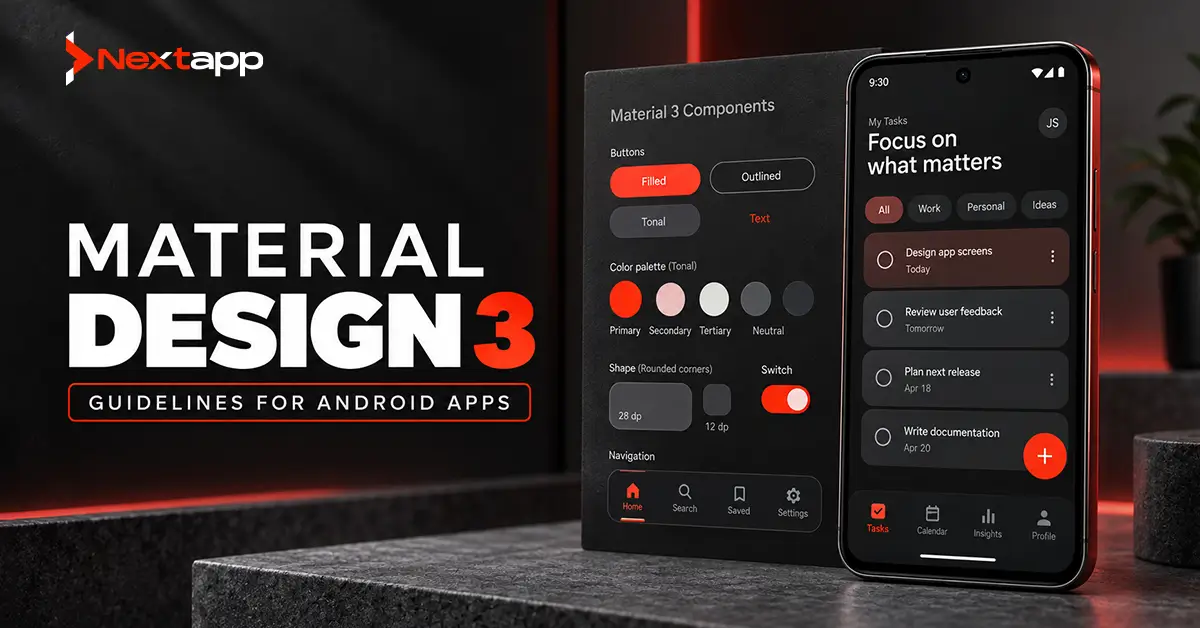
Material Design 3 is Google’s current design system for creating Android interfaces with consistent components, typography, color, shapes, motion, and interaction patterns.
It gives Android teams a foundation for designing familiar interfaces without requiring every button, form field, navigation pattern, and dialog to be created from scratch.
Material Design 3, also called Material 3 or M3, is supported through the Compose Material 3 library. Google’s current documentation also includes Material 3 Expressive, an expansion of Material 3 with updated approaches to components, motion, typography, theming, and visual expression.
Using Material 3 does not mean every Android application should look identical.
A banking app, healthcare platform, retail product, and enterprise dashboard can all use Material components while maintaining different branding, information density, navigation, and interaction patterns.
The purpose of Material Design 3 guidelines for Android apps is to give teams consistent foundations while allowing the product to reflect its own business and user requirements.
What Is Material Design 3?
Material Design is Google’s open design system for building digital interfaces.
Material 3 provides reusable guidance and components for elements such as:
- Buttons
- Cards
- Navigation
- Text fields
- Dialogs
- Chips
- Switches
- Sliders
- App bars
- Search
- Menus
Android describes a design system as a collection of reusable decisions expressed through guidance, components, and patterns. These systems begin with smaller primitives such as color, typography, and shape and combine them into larger interface components.
In Jetpack Compose, Material 3 theming is primarily organized around three systems:
- Color
- Typography
- Shape
When these theme values are configured, Material 3 components can use them consistently throughout the application.
Businesses deciding how Material 3 will be implemented should also understand Android app development services more broadly. A design system works best when product strategy, UI design, Android development, accessibility, testing, and backend requirements are considered together.
Start With the Product, Not the Component Library
Material 3 provides components, but components do not define the product.
Before choosing cards, chips, navigation bars, or floating action buttons, identify:
- Who uses the application
- Which tasks they complete most often
- Which information deserves priority
- Which actions carry risk
- How frequently users return
- Which devices they use
- Which accessibility requirements apply
A healthcare app may prioritize patient identity, medication information, appointments, and clear warnings.
A sales dashboard may prioritize key performance indicators, filters, account status, and trend information.
A warehouse app may prioritize large controls, barcode scanning, fast status changes, and clear offline feedback.
The same Material component can serve each product differently.
Teams can use app prototyping before development to test whether navigation, forms, information hierarchy, and actions make sense to real users.
Build a Consistent Color System
Material 3 uses color roles rather than encouraging developers to apply arbitrary colors screen by screen.
A color scheme may define roles for:
- Primary actions
- Secondary actions
- Backgrounds
- Surfaces
- Containers
- Text
- Errors
- Borders
- Selected states
This approach helps teams keep color meaning consistent.
For example, a primary color may identify the most important action across several screens. Error colors should consistently represent problems rather than being used decoratively elsewhere.
Material 3 also supports dynamic color on compatible Android devices. Dynamic color can derive a color scheme from the user’s system personalization and generate light and dark variations. Android’s Material 3 implementation supports dynamic color alongside custom light and dark schemes.
Brand identity should still be considered.
A financial institution may choose a controlled branded palette instead of allowing extensive dynamic personalization. A consumer lifestyle app may find dynamic color appropriate.
Product requirements should determine how much personalization is allowed.
Use Dynamic Color Carefully
Dynamic color can make an Android app feel connected with the wider device experience.
It should not reduce:
- Brand recognition
- Status clarity
- Accessibility
- Compliance
- Information hierarchy
A business application may use dynamic color selectively while retaining fixed colors for critical statuses.
For example:
- Red may continue to indicate a failed transaction.
- Green may remain associated with confirmed completion.
- A healthcare warning should not change meaning according to the user’s wallpaper.
Dynamic color is a design tool, not an obligation.
Establish Typography Hierarchy
Typography helps users understand what matters first.
A useful Android typography system may distinguish:
- Screen titles
- Section headings
- Body content
- Labels
- Supporting text
- Button text
- Data values
- Captions
Avoid creating a different style for every screen.
A dashboard, for example, may use a large style for the main page title, medium styles for card headings, and smaller supporting styles for context.
Users should be able to scan the interface and understand relationships before reading every word.
Typography also needs to remain usable when users increase system font sizes.
Text scaling should be tested during development rather than assumed to work automatically.
Use Shape Consistently
Material 3 allows shape to contribute to a product’s visual identity.
Shapes can affect:
- Buttons
- Cards
- Containers
- Dialogs
- Input fields
- Chips
A product can feel more formal through restrained shapes or more approachable through softer rounded components.
Consistency matters more than adding many different corner styles.
If every card, button, field, and dialog uses unrelated shapes, the interface may feel fragmented even when each individual component looks polished.
Choose Navigation According to the Screen
Navigation should reflect the number and importance of destinations.
Material 3 supports patterns such as:
- Navigation bars
- Navigation rails
- Navigation drawers
- Tabs
- App bars
A phone app with three or four major areas may use bottom navigation.
A wider tablet layout may use a navigation rail.
An enterprise application with many sections may require a navigation drawer or an adaptive combination.
Material 3 includes different navigation components intended to support different layouts and device sizes.
This is one reason teams should not design Android screens only for a standard phone.
The related guide on designing responsive Android UI for tablets should be considered when a business app will be used on larger displays.
Design Dashboards Around Priority
Dashboards can become cluttered quickly.
A business dashboard may contain:
- Revenue
- Orders
- Alerts
- Tasks
- Charts
- Messages
- Filters
- Account information
Material cards and containers can organize this information, but simply putting every metric into a card does not create hierarchy.
Identify:
- Which information requires immediate attention?
- Which metric supports the primary decision?
- Which details can appear after interaction?
- Which actions are most frequent?
A logistics dashboard may prioritize delayed shipments and active tasks before monthly reporting.
A healthcare dashboard may prioritize critical patient information before administrative statistics.
Use Material components to support the hierarchy rather than allowing the component library to determine it.
Build Forms Around Completion
Forms are central to many business applications.
Material components provide text fields, checkboxes, switches, radio controls, chips, and other input patterns.
A usable form should:
- Ask only necessary questions
- Use visible labels
- Group related information
- Provide useful validation
- Preserve entered data
- Show errors near the relevant field
- Use appropriate keyboards
- Make required fields clear
Avoid presenting twenty fields on one screen simply because the backend contains twenty database columns.
Break longer workflows into meaningful sections when necessary.
A healthcare registration form may separate personal information, insurance information, medical history, and consent instead of displaying everything in one continuous page.
Make Error States Specific
A Material-designed form can still provide poor UX if the error messages are vague.
Avoid:
“Invalid entry.”
Use:
“Enter a valid email address.”
Avoid:
“Something went wrong.”
Use:
“We could not save this form. Check your connection and try again.”
Visual error styling should support the message rather than replace it.
Color alone should not be responsible for telling users that something failed.
Accessibility Must Be Part of Material Implementation
Material components provide an accessibility foundation, but developers still need to design and test the complete application.
Android’s Material 3 documentation notes that accessibility considerations built into Material components are intended to support users with visual, hearing, motor, cognitive, and situational disabilities.
Teams should test:
- TalkBack labels
- Reading order
- Text scaling
- Contrast
- Touch targets
- Focus behavior
- Error announcements
- Alternative interaction methods
- Motion settings
The dedicated guide on Android app accessibility with TalkBack and accessibility services is particularly important for healthcare, government, financial, education, and enterprise applications where accessibility can carry both usability and compliance implications.
Material components provide a starting point. They do not replace accessibility testing.
Plan Dark Mode as a Complete Theme
Dark mode should not be created by changing a white background to black.
The theme must account for:
- Backgrounds
- Surface levels
- Text
- Icons
- Dividers
- Images
- Charts
- Status colors
- Brand colors
- Disabled states
Android supports system dark theme and Material 3 provides separate light and dark color schemes. Android also notes that dark themes can improve usability in low-light environments and may reduce power consumption on some screen technologies.
Teams building both themes should review dark mode implementation in Android apps to make sure color roles, system settings, contrast, images, and testing are handled correctly.
Do not wait until the last development sprint to add dark mode. Design decisions made earlier may not translate cleanly.
Design for Tablets and Foldables
Android products increasingly need to respond to different window sizes.
A phone interface should not simply stretch across a tablet.
Material guidance supports adaptive layouts and different navigation approaches for larger displays.
A wider screen may introduce:
- List-detail layouts
- Additional navigation
- Two-column forms
- Supporting panels
- Persistent filters
- More visible context
Foldable devices introduce additional changes because the available space can change while the app remains open.
Teams expecting broader Android device support should treat designing Android apps for foldable devices as part of the product roadmap rather than assuming phone layouts will automatically adapt.
Large-screen decisions can be especially important for point-of-sale systems, healthcare tablets, field tools, and enterprise dashboards.
Use Motion to Explain Interface Changes
Motion should help users understand what happened.
Useful animation may:
- Show where content moved
- Confirm selection
- Explain expansion
- Indicate progress
- Connect related screens
Avoid adding motion only to make the application feel more sophisticated.
Long animations can slow frequent tasks. Excessive movement can also create accessibility concerns.
Current Material 3 guidance includes motion as part of the wider design system, particularly in the newer Material 3 Expressive direction.
Use motion when it clarifies an interaction.
Keep Material 3 Connected With the Android Platform
Material Design 3 is closely aligned with Android, but a business may operate across multiple platforms.
A company building both Android and Apple applications should not automatically force identical components everywhere.
Native iOS app development may use Apple’s Human Interface Guidelines and platform conventions while preserving the same brand, content strategy, and business logic.
Similarly, teams using Flutter app development, React Native app development, or broader cross platform app development may reproduce a shared brand system while adapting interactions appropriately for Android.
The design system should create consistency without ignoring platform expectations.
Design System Consistency Helps Development
Reusable Material-based components can reduce repeated work.
A product team may define standard versions of:
- Buttons
- Fields
- Cards
- Dialogs
- Empty states
- Navigation
- Alerts
- Loading indicators
These components can include approved behavior for spacing, typography, accessibility, colors, and states.
A design system becomes especially valuable as multiple developers and designers work on the application.
Without shared components, one feature may use different spacing, button heights, error behavior, and loading patterns from another.
Consistency reduces both design and engineering decisions.
Test Material Components in Real Workflows
Do not approve a design system only from an isolated component page.
Test complete user journeys.
For example:
- Register an account
- Complete a purchase
- Submit a healthcare form
- Filter an enterprise dashboard
- Recover from an error
- Use the app with TalkBack
- Increase the system font size
- Switch to dark mode
- Rotate or resize the window
Components that look correct individually may create problems when combined.
Usability testing should therefore happen at both the component and workflow level.
Material Design Should Support the Product
Material Design 3 gives Android teams a strong foundation for color, typography, shape, navigation, inputs, accessibility, adaptive layouts, and reusable interface components.
It should not become a rigid template.
A healthcare application needs different priorities from a retail app. An enterprise dashboard needs different information density from a consumer subscription product. A field application may prioritize speed and large controls over decorative interface treatments.
The strongest implementation begins with user tasks and applies Material 3 where its components and patterns improve consistency and usability.
Professional Android app development services can bring product design, Material 3 implementation, accessibility, responsive layouts, prototyping, testing, and development together within one system.
A well-designed Android product can then move beyond looking consistent. It can also become easier to understand, operate, maintain, and scale.
Frequently Asked Questions
What is Material Design 3?
Material Design 3 is Google’s current design system for digital interfaces. It provides guidance and reusable components for areas such as color, typography, shapes, navigation, forms, motion, and accessibility.
Is Material Design 3 only for Jetpack Compose?
No. Compose provides a dedicated Material 3 implementation, while Android’s View system can use Material Components. New Compose applications should use Material 3 rather than the older Material 2 library.
Does every Android app need to look like a Google app?
No. Material 3 provides a design foundation that can be customized through color, typography, shape, layout, imagery, and branding.
What is dynamic color in Material 3?
Dynamic color can generate an application color scheme based on the user’s system personalization on supported Android versions. Businesses can choose whether this level of personalization fits their brand and product requirements.
Does Material 3 support accessibility?
Material components include accessibility-oriented foundations, but the complete app still requires testing for TalkBack, contrast, text scaling, touch interaction, focus, and other accessibility needs.
Should Material 3 be used for enterprise Android apps?
Yes, when its components and patterns support the workflow. Enterprise teams can customize Material 3 for dashboards, forms, healthcare interfaces, field tools, and other business applications without making every product look identical.