

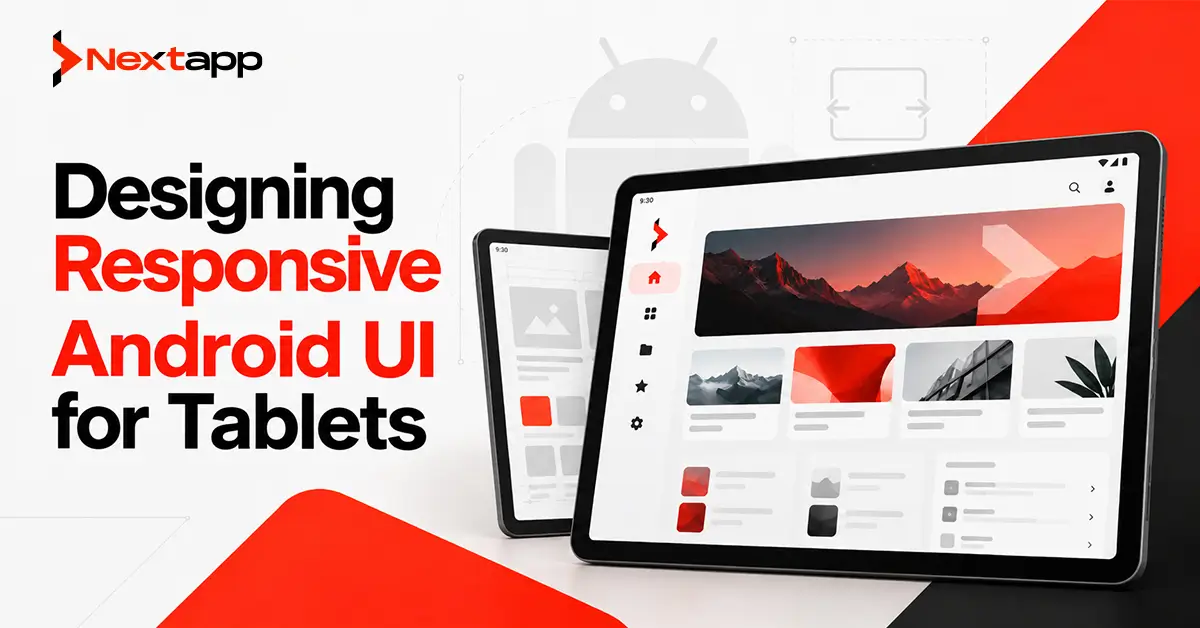
Android tablets give applications more space, but simply making a phone interface wider does not create a good tablet experience.
A phone layout is usually designed around limited horizontal space. Users move from one screen to another because only a small amount of information can fit comfortably at once. Tablets change this constraint. Larger screens can display related information together, support more efficient navigation, reduce unnecessary screen changes, and make complex business workflows easier to complete.
This becomes particularly important for enterprise and field applications.
A point-of-sale app may need products, cart details, pricing, and checkout controls visible at the same time. A clinical tablet may need a patient list alongside medical information. A warehouse application may need inventory, filters, item details, and scanning controls within one working view.
Designing responsive Android UI for tablets means using the available screen space intelligently while ensuring the interface can still adapt when the application is resized, rotated, or used in multi-window mode.
Responsive Android Design Is About Available Space
A tablet is not always used as a full-screen tablet.
Users may place two applications side by side. They may rotate the device, resize a window, connect the tablet to another display, or use a foldable device that moves between compact and expanded configurations.
For this reason, responsive Android layouts should be based on the space available to the application rather than a simple rule such as:
“If device equals tablet, show tablet layout.”
The interface should respond as its available width changes.
A compact window may require:
- One content column
- Bottom navigation
- Stacked form fields
- Separate detail screens
A larger window may support:
- Multiple content panes
- Navigation rails
- Side panels
- Wider dashboards
- Related information displayed together
This approach also creates a stronger foundation for designing Android apps for foldable devices, since foldable screens can change size while the application remains open.
Avoid Stretching a Phone Layout
One of the most common tablet design mistakes is taking an existing phone screen and allowing it to fill the entire width.
This can create:
- Extremely long text lines
- Oversized empty spaces
- Forms that become unnecessarily wide
- Large distances between controls
- Poor information density
- Continued dependence on phone-style navigation
A responsive tablet interface should reorganize content instead.
Consider a customer-management application.
On a phone, users may see a customer list. Selecting a customer opens a separate details screen.
A tablet can show the customer list on the left and the selected customer information on the right.
Users still follow the same workflow, but they no longer need to move repeatedly between two screens.
The additional space creates productivity rather than simply making the interface larger.
Use Multi-Pane Layouts for Related Content
Multi-pane layouts are particularly useful for business applications.
A larger display can show information that users frequently need together.
Clinical Applications
A healthcare tablet could display a patient list in one pane and the selected patient record in another.
A clinician can move between patients while maintaining access to appointment information, notes, medications, or other relevant details.
Point-of-Sale Applications
A POS tablet might show product categories and items on one side while keeping the current order, quantities, total, and checkout action visible on the other.
The user can complete a transaction without repeatedly opening and closing the cart.
Field-Service Applications
A field-service tablet may display active jobs alongside the details of the selected assignment.
Technicians could view:
- Customer information
- Service instructions
- Status
- Photos
- Completion controls
without constantly moving between screens.
Enterprise Dashboards
Administrative applications may use additional width for filters, charts, supporting metrics, or detailed records.
The key is relevance.
Two panes should appear because the information belongs together, not because the screen has unused space.
Adapt Navigation for Larger Screens
Navigation should also respond to available space.
Bottom navigation is useful on compact devices because important destinations remain easy to reach.
A tablet may provide enough space for:
- Navigation rail
- Persistent side navigation
- Expanded menu
- Supporting navigation panel
A responsive application can keep the same information architecture while changing how users access it.
For example, Home, Orders, Customers, Reports, and Settings may appear in bottom navigation on a phone and in a navigation rail on a tablet.
The destinations remain familiar. Only their presentation changes.
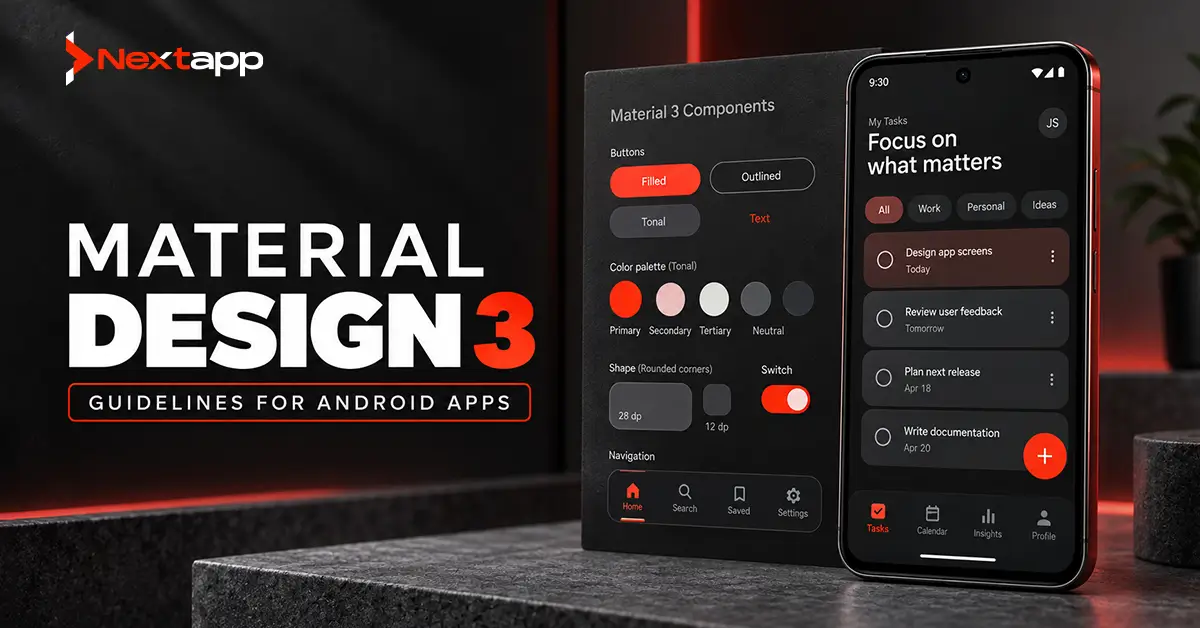
Teams following Material Design 3 guidelines for Android apps can establish these navigation patterns as reusable components so that phone and tablet versions remain visually and behaviorally consistent.
Design Tablet Dashboards Around Decisions
Larger screens often encourage teams to place more information on the dashboard.
More information is not always better.
A good dashboard should still prioritize the decisions users need to make.
A logistics dashboard may need to show:
- Delayed deliveries
- Active drivers
- Failed assignments
- Urgent alerts
before historical reporting.
A retail manager may care more about:
- Current sales
- Low inventory
- Staff alerts
- Pending orders
than secondary analytics.
Use larger tablet screens to provide context, not clutter.
Supporting metrics can be placed beside primary information, but important actions should remain easy to identify.
Make Forms More Efficient
Business applications frequently contain long forms.
A tablet gives designers an opportunity to organize these forms more effectively.
A phone form may display:
First name
Last name
Email
Phone
City
State
in one vertical column.
A wider layout may group related fields:
First name | Last name
Email | Phone
City | State
This reduces unnecessary scrolling while maintaining logical relationships between fields.
Avoid making every field span the full tablet width.
Very wide inputs can make information harder to scan and may increase the distance users need to move between fields.
Responsive forms should also return to a stacked layout when the available window becomes smaller.
Preserve Readability on Wider Screens
Text should not continue expanding indefinitely.
A large tablet may have enough width for extremely long lines, but long lines can reduce readability.
Instead of stretching paragraphs across the screen, consider:
- Maximum content widths
- Supporting columns
- Cards
- Multi-pane layouts
- Additional contextual information
The goal is to use space more intelligently, not fill every available pixel.
Typography should also remain consistent across devices.
A tablet does not necessarily require much larger body text than a phone. Screen size should primarily improve structure, context, and workflow efficiency.
Support Accessibility Across Responsive Layouts
An interface can be accessible on a phone and become difficult to use after moving to a tablet layout.
For example, a two-pane interface may change the logical reading order for screen-reader users.
Teams working on Android app accessibility with TalkBack and accessibility should review responsive layouts for:
- Reading order
- Focus movement
- Touch-target size
- Labels
- Large text
- Error messages
- Keyboard navigation
Text scaling is especially important.
A two-column form may work at the default font size but become crowded when a user increases system text settings.
Responsive design should allow content to reflow instead of clipping labels or hiding controls.
Design for Keyboard, Mouse, and Stylus Use
Tablets are frequently used with more than touch input.
Enterprise users may connect:
- Physical keyboards
- Mice
- Trackpads
- Styluses
A retail employee may use a keyboard with a POS tablet. A doctor may use a stylus for notes. An office employee may use a mouse and keyboard with a productivity application.
Interactive elements should therefore support clear focus behavior and predictable navigation.
Forms should not require users to repeatedly switch between keyboard and touch unnecessarily.
Productivity applications may also benefit from keyboard shortcuts for common actions.
Tablet design should consider how the device is actually used in the working environment.
Support Multi-Window Usage
Many tablet users run multiple applications simultaneously.
A user might keep a communication app open beside an inventory system or view reference information while completing a form.
The Android application should remain usable when its window becomes narrower.
A wide two-pane screen may need to collapse into one pane.
Navigation may move from a rail back to a compact pattern.
Grid columns may decrease.
Supporting information may move behind a secondary screen or action.
The interface should also preserve the user’s current state during these changes.
A user entering a long clinical note or order form should not lose progress simply because the application window was resized.
Keep Dark Mode Responsive
Tablet layouts often introduce additional surfaces that may not exist on phones.
Examples include:
- Navigation rails
- Side panels
- Secondary panes
- Expanded cards
- Additional dividers
Every new surface should work correctly in both light and dark themes.
Teams implementing dark mode implementation in Android apps should test complete responsive layouts instead of checking only compact phone screens.
Review:
- Surface contrast
- Text
- Icons
- Dividers
- Charts
- Form fields
- Navigation
- Selected states
Dark mode should preserve the same information hierarchy as the light version.
Prototype Tablet Workflows Before Development
A tablet design may change how users move through the product.
Before committing to a complex multi-pane interface, use app prototyping to test whether the additional information actually improves the workflow.
A prototype can help answer:
- Should the detail view remain visible?
- Which navigation pattern feels natural?
- Are filters always needed?
- Does a two-column form improve completion?
- Which information deserves the most space?
- Are users overwhelmed by the dashboard?
For enterprise products, prototypes should be tested with the people who perform the actual work.
A manager may prefer a detailed dashboard while a field technician may need only a few large, clear actions.
Real workflow testing helps resolve these differences before development becomes expensive.
Responsive UI With Jetpack Compose
Jetpack Compose can support responsive tablet interfaces by allowing UI structures to change according to the current layout conditions.
A screen may display one arrangement in a compact window and another when more space becomes available.
Teams can create reusable components and decide when to introduce:
- Additional panes
- Navigation rails
- Wider cards
- Responsive grids
- Supporting panels
An existing application does not necessarily need to be rebuilt entirely before tablet support is introduced.
View-based applications can also be improved gradually, and newer responsive features can be added as part of a broader modernization plan.
Responsive Android Design in Cross-Platform Apps
Tablet responsiveness remains important even when a company is not building a completely native Android application.
Teams using Flutter app development should verify how responsive widgets behave across Android tablet widths rather than relying on a phone-first layout.
The same applies to React Native app development, where shared mobile components still need responsive Android behavior.
A broader cross platform app development strategy should account for platform differences instead of assuming one layout will provide the best experience everywhere.
Native iOS app development also requires separate consideration for iPad layouts and Apple interaction patterns.
Branding and business logic may remain consistent across platforms, while navigation and layout adapt to each device ecosystem.
Test Across More Than One Tablet
One tablet model cannot represent the complete Android large-screen environment.
Test different:
- Screen sizes
- Aspect ratios
- Window widths
- Orientations
- Performance levels
- Input methods
Also test:
- Full screen
- Split screen
- Resized windows
- Large text
- Dark mode
- TalkBack
- Keyboard navigation
Look for problems between major layout changes.
A screen may work well at a compact width and a very wide tablet size but break at an intermediate width because a component requires more space than expected.
Use Tablet Screenshots in Your Store Listing
A strong tablet experience can become part of how the product is presented to potential users.
Teams working on app store optimization should consider showing tablet screenshots when the larger-screen experience provides meaningful value.
For example, screenshots could demonstrate:
- Multi-pane dashboards
- POS workflows
- Clinical interfaces
- Tablet navigation
- Expanded productivity features
Do not simply enlarge phone screenshots.
The store listing should show the real advantage users receive from the tablet version.
Common Responsive Tablet Design Mistakes
Avoid these problems:
- Stretching phone layouts
- Building around one fixed tablet size
- Assuming tablets always run full screen
- Using fixed grid columns
- Creating excessively wide forms
- Adding extra content only to fill space
- Ignoring keyboard and mouse interaction
- Losing state during window changes
- Forgetting accessibility after introducing multiple panes
- Testing only landscape orientation
- Treating tablet support as a separate product
- Failing to test intermediate window sizes
Responsive Tablet UI Should Improve the Task
Designing responsive Android UI for tablets means using additional space to make the application more useful.
A compact screen may show one focused task at a time. A wider screen can keep related content visible, improve navigation, reduce scrolling, and support more efficient data entry.
The interface should remain flexible enough to adapt when the user rotates the device, enters multi-window mode, changes text size, or connects different input devices.
Professional Android app development services can help businesses audit phone-first applications, redesign enterprise workflows for tablets, introduce responsive layouts, test accessibility, and support the wider Android device ecosystem.
The best tablet experience should feel like the same application with more room to work effectively, not a phone screen that has simply been enlarged.
Frequently Asked Questions
What is responsive Android UI for tablets?
Responsive Android UI changes layout structure, navigation, spacing, and content organization according to the space available to the application.
Should a tablet Android app use a separate layout?
Some screens may use different arrangements on larger windows, but the app does not necessarily need a separate codebase or completely separate interface.
Are multi-pane layouts good for Android tablets?
Yes, when the panes contain related information. Examples include customer lists with customer details, patient lists with records, and product catalogs with active carts.
Should tablet apps support split-screen mode?
Yes, when relevant to the product. Tablet users frequently multitask, so responsive layouts should remain usable when the application receives less screen space.
Do Android tablet apps need keyboard and mouse support?
Business and productivity apps should consider keyboard, mouse, trackpad, and stylus use because tablets are often used with external input devices.
How should responsive tablet interfaces be tested?
Test several tablet sizes, compact and wide windows, portrait and landscape, multi-window mode, large text, dark mode, accessibility services, and external input methods.