

Android applications often need to complete work after users leave a screen or even close the app.
A field-service app may need to upload inspection photographs once connectivity returns. A delivery app may need to synchronize completed orders. A business app may refresh selected records periodically. A media app may need to finish processing a file after the user moves elsewhere in the application.
These operations should not depend on a screen remaining open.
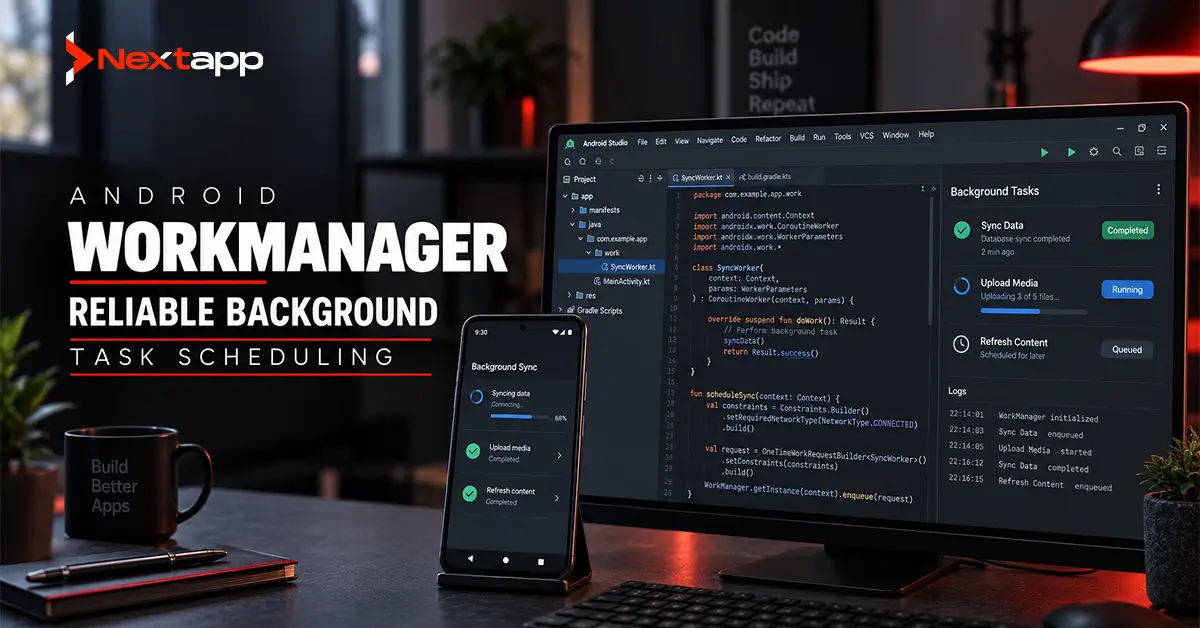
Android WorkManager is designed for persistent work that needs to complete reliably even when the application is no longer in the foreground. Android currently describes WorkManager as the recommended library for persistent work, particularly when tasks should eventually run after their defined constraints are met.
The important part is knowing when to use it.
WorkManager is not a replacement for every coroutine, timer, alarm, or foreground service. Reliable background task scheduling begins by matching the Android API to the actual product requirement.
What Is Android WorkManager?
WorkManager is part of Android Jetpack.
It allows developers to define units of background work and schedule them according to conditions such as:
- Network availability
- Charging status
- Battery condition
- Storage availability
- Initial delay
WorkManager supports one-time and periodic work, observable work status, retries, chaining, and unique work. Android also handles the underlying scheduling mechanism according to the device and operating system.
A typical WorkManager use case has three characteristics:
- The operation does not need to finish while the current screen remains open.
- It can run later instead of at an exact second.
- It is important enough that the application should attempt to complete it reliably.
Examples include synchronization, file uploads, deferred processing, and selected maintenance tasks.
WorkManager Should Fit the Wider Android Architecture
Background scheduling should not be designed separately from the rest of the application.
A production app might follow this flow:
UI → ViewModel → Repository → Local Database → WorkManager → Server
For example, a technician completes a service report while offline.
The interface stores the report locally. The repository marks it as pending synchronization. WorkManager later uploads it when the required network condition is available.
The UI does not need to remain active during this process.
Teams establishing the overall structure should first understand Android app architecture patterns (MVVM vs. MVI vs. MVP) so that background work does not become mixed directly into activities, composables, or oversized ViewModels.
WorkManager should perform persistent work. The presentation layer should display its status where necessary.
WorkManager vs. Other Android Background Options
The most common mistake is choosing WorkManager simply because the task happens “in the background.”
Android provides several approaches because different tasks have different timing and visibility requirements.
| Requirement | Better Direction | Typical Example |
|---|---|---|
| Short operation while the app is active | Coroutines or asynchronous application work | Load a profile after opening a screen |
| Persistent work that can run later | WorkManager | Upload queued records |
| Repeating work with flexible timing | Periodic WorkManager | Refresh selected cached data |
| Exact action at a specific clock time | Alarm-related APIs where permitted | A true alarm that must fire at a defined time |
| Long-running work clearly visible to the user | Foreground service or appropriate specialized API | Active navigation or media playback |
| Large system-managed download | DownloadManager where appropriate | Download a large file |
Android’s current background-work guidance recommends choosing the API according to the task category and notes that WorkManager is the best option in many persistent background-task scenarios. Using the wrong mechanism can increase battery usage or conflict with platform restrictions.
The decision should therefore begin with product behavior, not implementation preference.
One-Time Work
A OneTimeWorkRequest represents work that needs to complete once.
Common examples include:
- Uploading a report
- Synchronizing pending records
- Processing an image
- Sending deferred analytics
- Refreshing data after a specific event
Consider a logistics app.
A driver completes proof of delivery while offline. The record is saved locally. The app schedules one-time work that requires network connectivity.
The job remains pending until its conditions are satisfied.
Once connectivity becomes available, WorkManager can attempt the upload.
This model is much more reliable than leaving an upload tied to a screen or hoping the application remains active.
Periodic Work
Periodic work is useful when an application needs a recurring task but does not require exact timing.
Examples might include:
- Periodic data refreshes
- Maintenance
- Selected log uploads
- Background synchronization
Android currently enforces a minimum interval of 15 minutes for periodic WorkManager requests, and the exact execution time can shift because of battery optimizations and system scheduling.
This makes periodic work unsuitable for requirements such as:
“Run exactly at 9:00 AM every day.”
It is better suited to:
“Refresh this information periodically when the system has an appropriate opportunity.”
The distinction matters when product teams write requirements.
Use Constraints to Avoid Wasteful Work
Constraints allow a task to wait until suitable conditions exist.
A file upload may require network connectivity.
A large synchronization job might require an unmetered connection.
A maintenance operation may wait until the device is charging.
This can improve reliability and reduce unnecessary battery or data consumption.
Suppose a field application needs to upload 100 photographs.
Trying repeatedly while the phone has no network wastes resources.
A better design is to:
- Save the uploads locally.
- Schedule persistent work.
- Require network access.
- Let WorkManager begin when the condition is available.
This approach also works well with a carefully planned Android app data layer design with Room and SQLite, where Room stores pending records and WorkManager handles eventual synchronization.
The database preserves the state. WorkManager performs the deferred operation.
Retrying Failed Work
Background tasks fail.
Servers may be unavailable. Connections may drop. Uploads can time out.
WorkManager allows workers to report that a task should be retried. Android then reschedules the work according to a backoff policy.
Current WorkManager supports linear and exponential backoff strategies, with configurable delay rules.
A retry strategy should distinguish temporary problems from permanent ones.
A temporary failure might include:
- Network timeout
- Temporary server outage
- Rate limiting
- Service unavailable response
A permanent failure might include:
- Invalid account
- Deleted resource
- Unsupported request
- Authorization permanently revoked
Retrying permanent errors indefinitely creates unnecessary work.
The background system should return meaningful failure states so the product can decide whether to retry, stop, or ask the user to intervene.
Chain Related Tasks
Some background operations depend on earlier work.
For example, an image workflow may require:
- Compress image
- Encrypt file
- Upload file
- Confirm upload
- Update local record
WorkManager allows related tasks to be chained in sequence or combined with parallel work.
Dependent tasks begin only after their prerequisites complete successfully. If a required step fails, later work may remain blocked or fail according to the defined workflow.
Task chaining is useful when each operation has a clear responsibility.
Avoid creating one large worker that performs every unrelated background process in the application.
Smaller tasks can be easier to test, retry, and monitor.
Prevent Duplicate Work
Imagine a user pulls to refresh several times.
Without controls, the app might schedule the same synchronization job repeatedly.
WorkManager supports unique work, which allows developers to assign a name to an operation and define what should happen when work with the same name already exists.
Policies include options such as:
- Keep the existing work
- Replace it
- Append new work
- Append or replace depending on the existing chain
Android specifically recommends unique work for situations where only one instance of an operation, such as synchronization, should be active.
This can prevent duplicate API calls, repeated uploads, and unnecessary battery consumption.
WorkManager and Offline-First Applications
Offline-first products are one of the strongest WorkManager use cases.
A typical offline flow may be:
- User creates or changes data.
- The app writes the change into Room.
- The record is marked as pending.
- WorkManager waits for connectivity.
- The worker sends pending changes.
- Successful records are updated locally.
- Failed records remain available for retry.
This pattern is useful for:
- Field service
- Logistics
- Warehousing
- Healthcare
- Construction
- Inspection applications
The interface can remain responsive because saving locally does not depend on an immediate server response.
Reliable synchronization requires both the data layer and the scheduler to be designed together.
WorkManager Should Not Own UI State
A common architecture mistake is allowing a Worker to become responsible for interface decisions.
A Worker should not attempt to control:
- Navigation
- Dialogs
- Screen visibility
- Direct composable updates
It performs work and reports status.
The UI can observe relevant work information and decide how to present it.
This separation works regardless of whether the interface uses Jetpack Compose vs. XML layouts for Android UI.
A Compose screen may display synchronization state through observable ViewModel data. A legacy XML screen can do the same through lifecycle-aware Android components.
Changing the UI framework should not require redesigning the background scheduling system.
WorkManager and Kotlin Multiplatform
Companies sharing business logic across Android and iOS need to separate shared rules from platform scheduling.
A shared module might determine:
- Which records require synchronization
- How data should be validated
- How server responses are interpreted
- Which retry conditions are temporary
Android can then use WorkManager to schedule the actual persistent execution.
The iOS application uses Apple-specific background mechanisms.
This separation is important when planning Kotlin Multiplatform for Android and cross-device code sharing. Business rules can be shared, but operating system scheduling should follow each platform’s native requirements.
Expedited Work
Some user-important background operations need to begin quickly.
WorkManager supports expedited work for short tasks that are important to the user. Android treats expedited requests differently from ordinary deferred work, although execution remains subject to system quotas and operating-system restrictions.
Possible examples include:
- Processing a user-requested action after leaving a screen
- Quickly synchronizing an important change
- Completing a short deferred operation initiated directly by the user
Expedited work should not become a way to mark every task as urgent.
If everything is expedited, the application is working against Android’s resource-management model.
Monitor Work States
WorkManager provides observable states for scheduled tasks.
One-time work can move through states such as:
- Enqueued
- Running
- Succeeded
- Failed
- Blocked
- Cancelled
A retry can move the work back into an enqueued state.
These states can support useful product feedback.
A document app might show:
“Waiting for connection.”
Then:
“Uploading.”
Then:
“Upload complete.”
The user should not have to guess whether an important operation disappeared after leaving the screen.
Common WorkManager Mistakes
Avoid these frequent problems:
- Using WorkManager for ordinary screen-level asynchronous operations
- Expecting exact execution times
- Scheduling duplicate synchronization tasks
- Retrying permanent errors indefinitely
- Keeping pending data only in memory
- Running unrelated operations inside one large Worker
- Ignoring battery and network constraints
- Performing UI navigation directly from a Worker
- Scheduling periodic work when event-driven work would be enough
- Treating every task as expedited
- Using a foreground service when persistent WorkManager is sufficient
- Assuming background execution should bypass Android system restrictions
A wider Android app development guide for startups and enterprises should define these requirements before development so the application’s background behavior matches the actual user workflow.
Reliable Background Work Requires the Right Architecture
Android WorkManager provides a reliable way to schedule persistent tasks that can run after users leave the active application experience.
It is especially useful for uploads, synchronization, deferred processing, and flexible recurring operations.
Its strength comes from combining persistent scheduling with constraints, retries, observable state, unique work, and task chaining.
WorkManager should still remain one part of the larger Android architecture.
Room may store the records waiting to synchronize. Repositories may decide which information needs updating. ViewModels can expose status to the interface. WorkManager handles the persistent execution.
Professional Android app development services can help product teams decide which operations belong in WorkManager, which require foreground services or other APIs, and how background scheduling should connect with local storage, backend services, offline behavior, and application architecture.
Frequently Asked Questions
What is Android WorkManager used for?
WorkManager is used for persistent background tasks that should eventually complete even after users leave the current screen, such as data synchronization, queued uploads, and deferred processing.
Is WorkManager guaranteed to run immediately?
No. Ordinary WorkManager jobs run after their required constraints and system scheduling conditions are satisfied. It is designed for reliable eventual execution rather than exact immediate timing.
Can WorkManager run tasks periodically?
Yes. Periodic WorkManager requests can run repeatedly, although Android currently requires a minimum interval of 15 minutes and execution timing may vary because of system optimizations.
Should I use WorkManager or a foreground service?
Use WorkManager for persistent work that can be scheduled and completed in the background. A foreground service is more appropriate for certain long-running operations that must remain noticeable to the user and meet Android’s foreground-service requirements.
Can WorkManager retry failed uploads?
Yes. A Worker can request a retry, and WorkManager can reschedule the task using a configurable linear or exponential backoff policy.
Does WorkManager work with Room?
Yes. Room and WorkManager are commonly used together in offline-capable applications. Room can store pending records, while WorkManager schedules reliable synchronization when the required conditions become available.